Add / Remove Items from New Menu in Windows
In Windows, whenever we right-click on Desktop or Explorer, we get “New” menu which contains shortcuts for various known file types. We can easily create new files using this handy “New” menu.
Sometimes we may want to remove a few unwanted items from “New” menu or we may want to add a few necessary items to “New” menu which are not present. So in this tutorial, I’ll tell you how can you add / remove items to / from “New” menu:
A. To Add an Item in “New” menu:
1. Open regedit and expand “HKEY_CLASSES_ROOT” key.
2. Now look for the file type which you want to add in “New” menu, e.g. for adding MP3 file type look for .MP3 key.
3. Right-click on it and select “New -> Key” and give it name “ShellNew“.
4. In right-side pane, right-click and select “New -> String Value“. Give it name “NullFile” and press Enter.
5. Thats it. You’ll immediately get the file type entry in “New” menu.
B. To Remove an Item from “New” menu:
1. Open regedit and expand “HKEY_CLASSES_ROOT” key.
2. Now look for the file type which you want to remove from “New” menu, e.g. for removing MP3 file type look for .MP3 key.
3. Expand it and delete the “ShellNew” key.
4. Thats it. The file type will be removed from “New” menu.


Cool Things You Can Do With Google
No one would argue the fact that Google is one of the most useful sites on the Internet. Unfortunately, most people only use about 3% of its power. Smart Google users, on the other hand, know how to turn Google into a quick calculator, translate foreign sites, create their own customized search engine, and search for movie reviews and stock quotes with special search queries. In this article, we’ll show you how to do all of that and more.
Turn Google Into a Quick Calculator Google enables you to perform a number of math operations including addition, subtraction, multiplication, division, and percentages. All you have to do is use some calculator operators, which include: + (addition) - (subtraction) * (multiplication) / (division) % of (percentage of) ^ (raise to a power) Here a few example queries to get you started. 23+34 120-43 36*20 27/3 36% of 134 3^9 (3 to the 9th power)
Take Notes while Browsing the Web with Google Notebook. This note taking application allows you to organize all of your online research quickly and easily. With Google Notebook, you can clip text, images, and links from web pages while browsing. Your notes and clips are saved to an online “notebook” that you can access from any computer, and may also be shared with others. So whether you’re planning a vacation or writing a school paper, Google Notebook makes it easy. To get started, go to Google Notebook’s main site.
Translate Foreign Sites A large portion of the web sites on the Internet are not in English. This means that you’re missing out on a big portion of the Web. Fortunately, Google has provided a solution. First, translate the word you want to search for into the desired language. You can do this at BabelFish. Next, go to Google, enter your search query, and press enter. On the results page, you should see a link that says, “Translate this page” to the right side of the search results. Click on that link and Google will automatically translate the page to English for you. I have used just this one tip to discover a number of great new sites that I never would have had access to if it weren’t for Google’s translation tools.
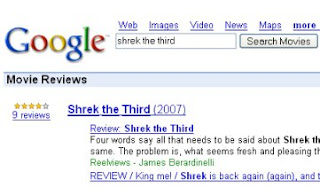
Looking for Movie Reviews? Google’s got you covered. Simply go to http://www.google.com/movies and type in your favorite movie. Here’s an example of my most recent search for Shrek the Third:
 Google also has lots of specialized search portals catered to technology enthusiasts. Are you a Mac junkie? Google will allow you to search for all things related to Mac and Apple at http://www.google.com/mac. Search for all things Microsoft at http://www.google.com/microsoft. Not a Microsoft fan? Google’s got a special Linux search engine waiting for you at http://www.google.com/linux.
Forget the Weather Channel. Who needs television when you’ve got Google? To get your local weather, simply go to www.google.com and type in weather:”areacode”. Fill in your area code and you will be given a 4-day weather forecast and today’s temperature, wind, and humidity.
Looking For a Stock Quote? Find it quickly at Google by typing in: “stocks:msft”. This search query will give you a quick snapshot of Microsoft’s stock performance. To find other stock information, just change the stock symbol.
Create your own Customized Google Search Engine. Google is allowing everyone to join in the fun with Google Custom Search Engines. This Google product allows anyone to create their very own search engine. You get to choose the sites, invite others to contribute to your search engine, and even customize the look and feel to suit your preferences. You could make your very own customized search for jobs, videos, digital camera reviews, and more. The possibilities are endless. Start building your own search engine at http://google.com/coop/cse/.
Hidden Google Pages There are also a number of hidden pages on Google that you’ve probably never seen before. Here are just a few of them: Google Moms - A tribute to Google moms for Mother’s Day. Google Dance 2004 , Google Dance 2005 and Google Dance 2006. Yes, it’s hard to believe, but Google has their very own dance. They’re packed with plenty of food, drinks, games, product demos, and a hotspot where you can meet the engineers. Google Holiday Logos - About the only thing that spices up the Google homepage are their cool logos. They’ve dedicated a special page to commemorate all of the holiday logos dating back to 1999. Dilbert and the Google Logo - Check out the first and last Dilbert cartoon on Google.
Get the local time of any place Not many people know that Google can also be used to get the local time of any place. To get the local time of the place of your choice follow the steps mentioned below. 1.) Point your browser to www.google.com 2.) In the search box type time. For e.g. to get the current time of Bangalore type, time Bangalore 3.) The search result has the first entry as the local time of the place you entered.
The Future of Google Google always has new ideas brewing in the Google Labs. Everything from Experimental Search to Google Voice Local Search. Find out what they’re up to at http://labs.google.com. Play around with their prototypes and then send in some feedback. Who knows, maybe we’ll see your ideas in the next Google tool. Feel free to post comments :)
Turn Google Into a Quick Calculator Google enables you to perform a number of math operations including addition, subtraction, multiplication, division, and percentages. All you have to do is use some calculator operators, which include: + (addition) - (subtraction) * (multiplication) / (division) % of (percentage of) ^ (raise to a power) Here a few example queries to get you started. 23+34 120-43 36*20 27/3 36% of 134 3^9 (3 to the 9th power)
Take Notes while Browsing the Web with Google Notebook. This note taking application allows you to organize all of your online research quickly and easily. With Google Notebook, you can clip text, images, and links from web pages while browsing. Your notes and clips are saved to an online “notebook” that you can access from any computer, and may also be shared with others. So whether you’re planning a vacation or writing a school paper, Google Notebook makes it easy. To get started, go to Google Notebook’s main site.
Translate Foreign Sites A large portion of the web sites on the Internet are not in English. This means that you’re missing out on a big portion of the Web. Fortunately, Google has provided a solution. First, translate the word you want to search for into the desired language. You can do this at BabelFish. Next, go to Google, enter your search query, and press enter. On the results page, you should see a link that says, “Translate this page” to the right side of the search results. Click on that link and Google will automatically translate the page to English for you. I have used just this one tip to discover a number of great new sites that I never would have had access to if it weren’t for Google’s translation tools.
Looking for Movie Reviews? Google’s got you covered. Simply go to http://www.google.com/movies and type in your favorite movie. Here’s an example of my most recent search for Shrek the Third:
 Google also has lots of specialized search portals catered to technology enthusiasts. Are you a Mac junkie? Google will allow you to search for all things related to Mac and Apple at http://www.google.com/mac. Search for all things Microsoft at http://www.google.com/microsoft. Not a Microsoft fan? Google’s got a special Linux search engine waiting for you at http://www.google.com/linux.
Forget the Weather Channel. Who needs television when you’ve got Google? To get your local weather, simply go to www.google.com and type in weather:”areacode”. Fill in your area code and you will be given a 4-day weather forecast and today’s temperature, wind, and humidity.
Looking For a Stock Quote? Find it quickly at Google by typing in: “stocks:msft”. This search query will give you a quick snapshot of Microsoft’s stock performance. To find other stock information, just change the stock symbol.
Create your own Customized Google Search Engine. Google is allowing everyone to join in the fun with Google Custom Search Engines. This Google product allows anyone to create their very own search engine. You get to choose the sites, invite others to contribute to your search engine, and even customize the look and feel to suit your preferences. You could make your very own customized search for jobs, videos, digital camera reviews, and more. The possibilities are endless. Start building your own search engine at http://google.com/coop/cse/.
Hidden Google Pages There are also a number of hidden pages on Google that you’ve probably never seen before. Here are just a few of them: Google Moms - A tribute to Google moms for Mother’s Day. Google Dance 2004 , Google Dance 2005 and Google Dance 2006. Yes, it’s hard to believe, but Google has their very own dance. They’re packed with plenty of food, drinks, games, product demos, and a hotspot where you can meet the engineers. Google Holiday Logos - About the only thing that spices up the Google homepage are their cool logos. They’ve dedicated a special page to commemorate all of the holiday logos dating back to 1999. Dilbert and the Google Logo - Check out the first and last Dilbert cartoon on Google.
Get the local time of any place Not many people know that Google can also be used to get the local time of any place. To get the local time of the place of your choice follow the steps mentioned below. 1.) Point your browser to www.google.com 2.) In the search box type time
The Future of Google Google always has new ideas brewing in the Google Labs. Everything from Experimental Search to Google Voice Local Search. Find out what they’re up to at http://labs.google.com. Play around with their prototypes and then send in some feedback. Who knows, maybe we’ll see your ideas in the next Google tool. Feel free to post comments :)
ADD FIELDS TO THE DETAILS VIEW OF FOLDER
You can add other columns to the Details view of the files contained in Windows XP folders, such as Comments, Description, Category, and many others. To add new columns:
Right–click the column header of the files list, and then click one of the fields listed, or click More. In the Choose Details dialog box, you can reorganize the order of column headers, specify column widths, and add columns to display details for the files in that folder. When you click the new column header, the width of the selected column is displayed in pixels in the Choose Details dialog box.
THE TRIPLE CLICK TRICK
No, you don't have to know how to skate or dance to do this...
Selecting text can be a fiddly experience, especially if you are using a portable computer with an input device that doesn't work as well as a traditional mouse. So, when you want to cut and paste or copy and paste text, try the triple click. The results vary slightly from one program to another, but most often a single click locates the cursor in the text you are pointing to, a second click highlights the word, and a third click expands the highlighting to the entire paragraph.
Ofcourse, you can try this trick in this paragraph... hit mouse button three times...
This is much faster and more convenient than trying to drag the pointer over a paragraph. After you have highlighted your text, remember to use the right mouse button to access the shortcuts to "cut," "copy" and "paste." There is no point in clicking buttons at the top of the screen or bringing down the Edit menu when the functions you need are right at your finger tip...
How To Set Up Proxies In Your Browser
This is a small Tutor - try it out!
===================================
How to set up proxies in your browser, (!!!!be anonymous and make the passes last longer...!!!!!!
===================================
In Internet Explorer
===================================
Click "Tools", then "Internet Options", the in the "connections" Tab, click the "LAN Setup" Button in the bottom. There is a "Proxy Servers", tick the "Use a proxy....." and then enter the proxy in the bigger textbox and the port (the part that comes after the ":") in the smaller textbox. Hit okay, and then go to
CODE
www.whatismyip.com
to see if the proxy is now your IP.
===================================
In OPERA
===================================
Click "Files", then "Preferences", then "Network", then click the button "Proxy Servers", tick "HTTP", fill in with the proxy:port, click okay and that's it! Don't forget to check with
CODE
www.whatismyip.com
===================================
In Firefox
===================================
Tools -> Options
Then click the General Icon
Then the "Connection Settings..." button
Then click the "manually configure proxies" radio button, and enter the proxy address and port in the HTTP Proxy area.
Don't forget to check with
CODE
www.whatismyip.com
CODE
www.proxy4free.com
www.safeproxy.org
www.megaproxy.com
www.guardster.com
www.silenter.com
www.anonymizer.com
Happy Anonymous surfing!
To be clear: if I give you 255.255.255.255:8080, that means 255.255.255.255 is the proxy and 8080 is the port
To Optain Fresh and new proxies, you can always check Google...
Use your pc as alarm
Now this is specially for the ones who are too lazy to get up even when the trust cellphone dies screeching its lungs out. Its pretty simple Creating the playlist create a playlist of your favourite songs in Winamp, WMP or any other player. Export the playlist as a M3U playlist. M3U is generally accepted by almost every player.
Triggering the alarm point to start> programs >accessories > system tools >scheduled tasks Create a new task and choose program as windows media player or winamp (May work with others too but I haven’t tried anything else) Choose “daily”, Enter the time and choose “every day” at next screen. It would now ask for password (leave blank in case you don’t have one) Right click on the newly created task and check the “run only if logged in” check box. In the properties. Append the path to the playlist you created in the “run” text box. It should now look like Code:
Code:
“D:\windows mediaplayer\wmplayer.exe”K:\Playlists\smoothies.m3uthe text inside quotes is my WMP’s path.
It may vary for you. The text after WMP’s path is the one to the playlist. Click OK and you’re done.
Subscribe to:
Posts (Atom)

