Services You Can Disable in Windows Vista
There are several services you can disable to help improve performance.
Desktop Window Manager Session Manager - Provides Desktop Window Manager startup and maintenance services.
If you don't plan on using Aero Glass, you can disable this service.
Diagnostic Policy Service - Enables problem detection, troubleshooting and resolution for Windows components
Set to Disabled
Diagnostic Service Host - Same as above
Diagnostic System Host - Same as above
Offline Files - The Offline Files service performs maintenance activities on the Offline Files cache, responds to user logon and logoff events, implements the internals of the public API, and dispatches interesting events to those interested in Offline Files activities and changes in cache state.
Terminal Services - Allows users to connect interactively to a remote computer. Remote Desktop and Terminal Server depend on this service. If you don't use either of these, then you can disable the service.
Windows Error Reporting Service - Allows errors to be reported when programs stop working or responding and allows existing solutions to be delivered.
Windows Search - Formerly this was the Indexing Service. Provides content indexing.


Changing the Location of the My Documents Folder
If you would like to change the location of the Documents folder to a new location:
1. Create the new location's folder
2. Click on the Start button
3. Right click on My Documents
4. Select Properties
5. Click on the Location tab
6. Click on Move and select the new location you just created
For example, I prefer to keep all my data on a second partition for easier backup. My Documents folder is moved to D:\Data\Documents
How to uninstall the Microsoft Java Virtual Machine (JVM)
Microsoft JVM is no longer supported by Microsoft, and it is recommended to remove it and install the Sun Microsystems JVM. The steps for removing Microsoft Java Virtual (JVM) are given below.
• Start -> Run
• RunDll32 advpack.dll,LaunchINFSection java.inf,UnInstall
• The un-install process begins. Click Yes to confirm.
• Reboot when prompted.
• After the machine restarts, delete the following items:
-the \%systemroot%\java folder
-the file java.pnf from the \%systemroot%\inf folder
-the two files jview.exe and wjview.exe from the \%systemroot%\system32 folder
-the HKEY_LOCAL_MACHINE\SOFTWARE\Microsoft\Java VM registry subkey
-the HKEY_LOCAL_MACHINE\SOFTWARE\Microsoft\Internet Explorer\AdvancedOptions\JAVA_VM registry subkey (to remove the Microsoft Internet Explorer (IE) options)
• Microsoft Java is now removed.
You can download Sun's newer JVM for Windows at: http://java.sun.com/getjava/index.html
Turning Off Vista's Built-In CD Burning
Since most computers come with 3rd party programs that are easier to use than Vista's CD/DVD burning,
you can turn this off with a simple registry edit.
1. Start Regedit (Press win+r, then type regedit)
2. Go to HKEY_CURRENT_USER\ Software \ Microsoft \ Windows \ CurrentVersion \ Policies \ Explorer
3. Create a new DWORD key NoCDBurning
4. Give it a value of 1
5. Log off and back on again
Adding the Internet Explorer Icon to the desktop in Vista
By default, the icon for the Internet Explorer 7 does not show up on the Vista desktop
To add it back in again, a registry edit is needed.
Just copy the below code and paste in notepad and save it as anyname.reg
Windows Registry Editor Version 5.00
[HKEY_CURRENT_USER\Software\Microsoft\Windows\CurrentVersion\Explorer\HideDesktopIcons\NewStartPanel]
"{871C5380-42A0-1069-A2EA-08002B30309D}"=dword:00000000
Then log off and back on again.
Adding Custom Sound Event in XP
We all know how to change a sound when window starts. But what if we want to create a Custom sound event. What if we like to add a sound whenever a program is opened? Just imagine how good it would be to add a sound whenever Firefox starts, After all sometimes it takes long to open.
To add a custom sound effect, you need to open your registry, and please do not forget to backup your registry before making any changes.
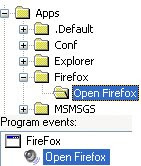 1. Go to Start –> Run, type Regedit
2. Go to HKEY_CURRENT_USER\AppEvents\Schemes\Apps
3. Right Click on Apps, New –> Key
4. Name the key with the programs EXE file, like Firefox for Firefox, Winword for Office word, without the extension
5. Now on right pane, right click Default, and click Modify and type in the same application name
6. Right click on new key and create a new key, and name whatever you want to
Custom Sound
7. Go to Control Panel –> Sounds and Audio devices –> Sounds, there you should be able to see the Custom sound event you added.
You can now assign any sound event you want to.
Do try it, an great tip to personalize your system more :)
1. Go to Start –> Run, type Regedit
2. Go to HKEY_CURRENT_USER\AppEvents\Schemes\Apps
3. Right Click on Apps, New –> Key
4. Name the key with the programs EXE file, like Firefox for Firefox, Winword for Office word, without the extension
5. Now on right pane, right click Default, and click Modify and type in the same application name
6. Right click on new key and create a new key, and name whatever you want to
Custom Sound
7. Go to Control Panel –> Sounds and Audio devices –> Sounds, there you should be able to see the Custom sound event you added.
You can now assign any sound event you want to.
Do try it, an great tip to personalize your system more :)
 1. Go to Start –> Run, type Regedit
2. Go to HKEY_CURRENT_USER\AppEvents\Schemes\Apps
3. Right Click on Apps, New –> Key
4. Name the key with the programs EXE file, like Firefox for Firefox, Winword for Office word, without the extension
5. Now on right pane, right click Default, and click Modify and type in the same application name
6. Right click on new key and create a new key, and name whatever you want to
Custom Sound
7. Go to Control Panel –> Sounds and Audio devices –> Sounds, there you should be able to see the Custom sound event you added.
You can now assign any sound event you want to.
Do try it, an great tip to personalize your system more :)
1. Go to Start –> Run, type Regedit
2. Go to HKEY_CURRENT_USER\AppEvents\Schemes\Apps
3. Right Click on Apps, New –> Key
4. Name the key with the programs EXE file, like Firefox for Firefox, Winword for Office word, without the extension
5. Now on right pane, right click Default, and click Modify and type in the same application name
6. Right click on new key and create a new key, and name whatever you want to
Custom Sound
7. Go to Control Panel –> Sounds and Audio devices –> Sounds, there you should be able to see the Custom sound event you added.
You can now assign any sound event you want to.
Do try it, an great tip to personalize your system more :)
Subscribe to:
Posts (Atom)

